
01 / Technical flats
Flat Fill Studio
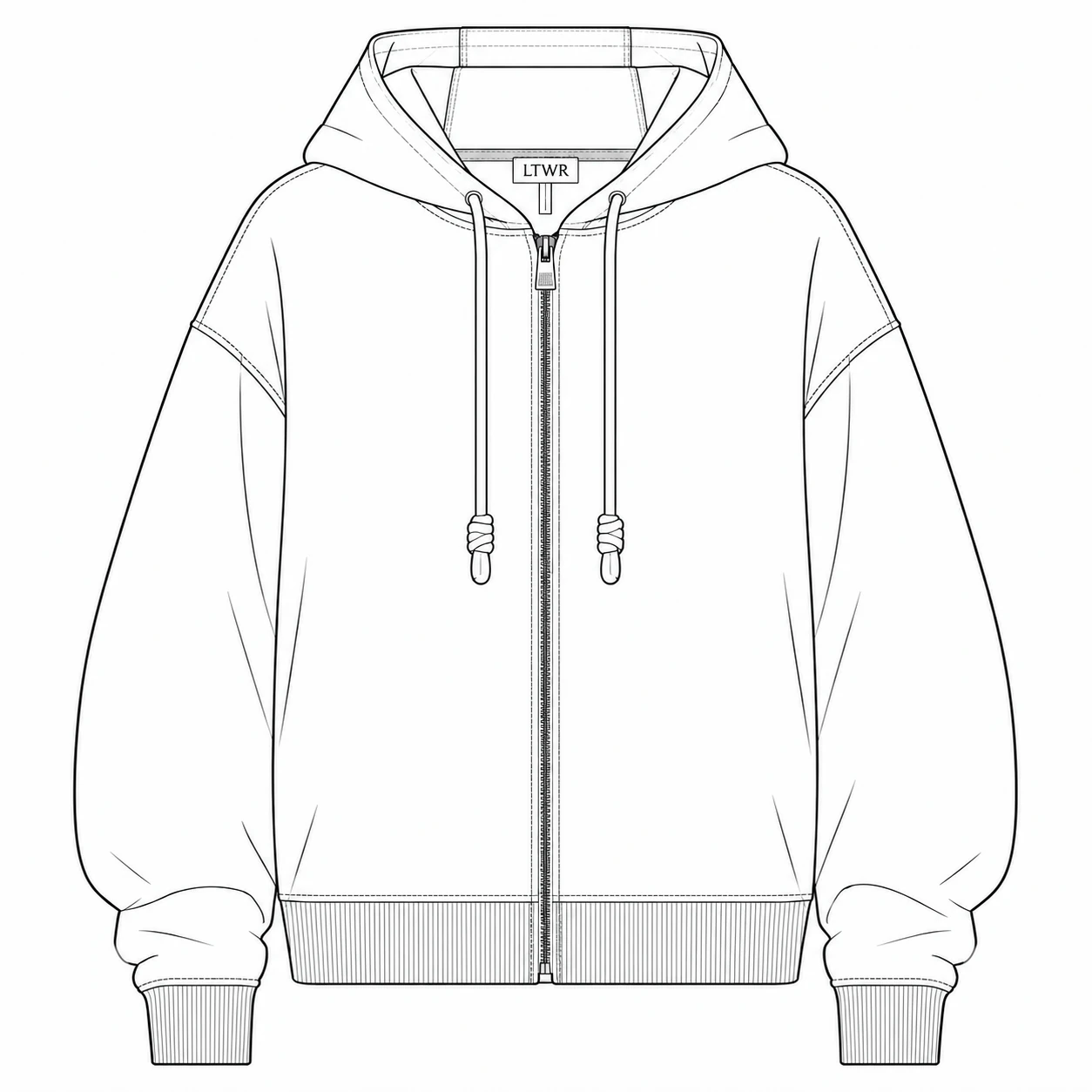
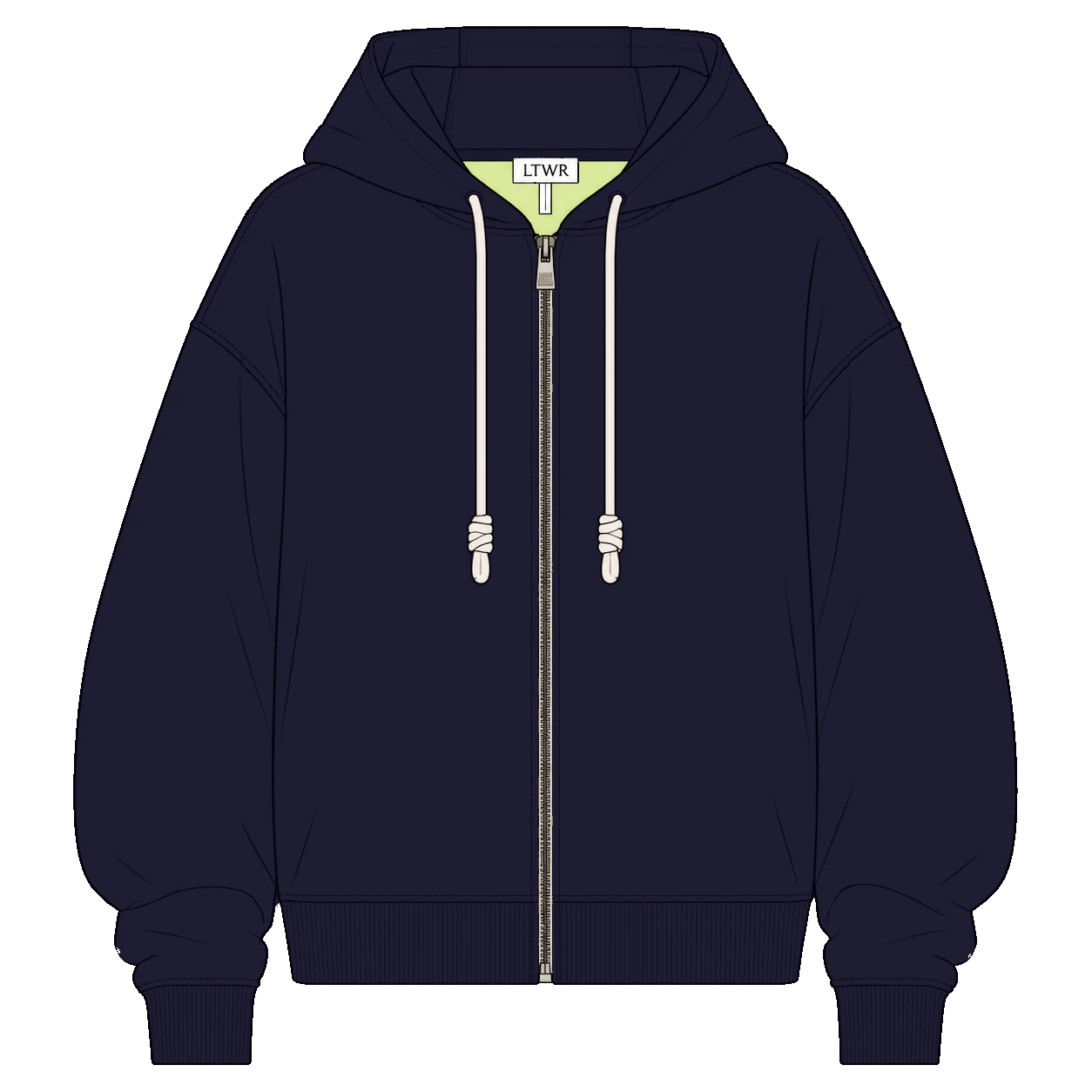
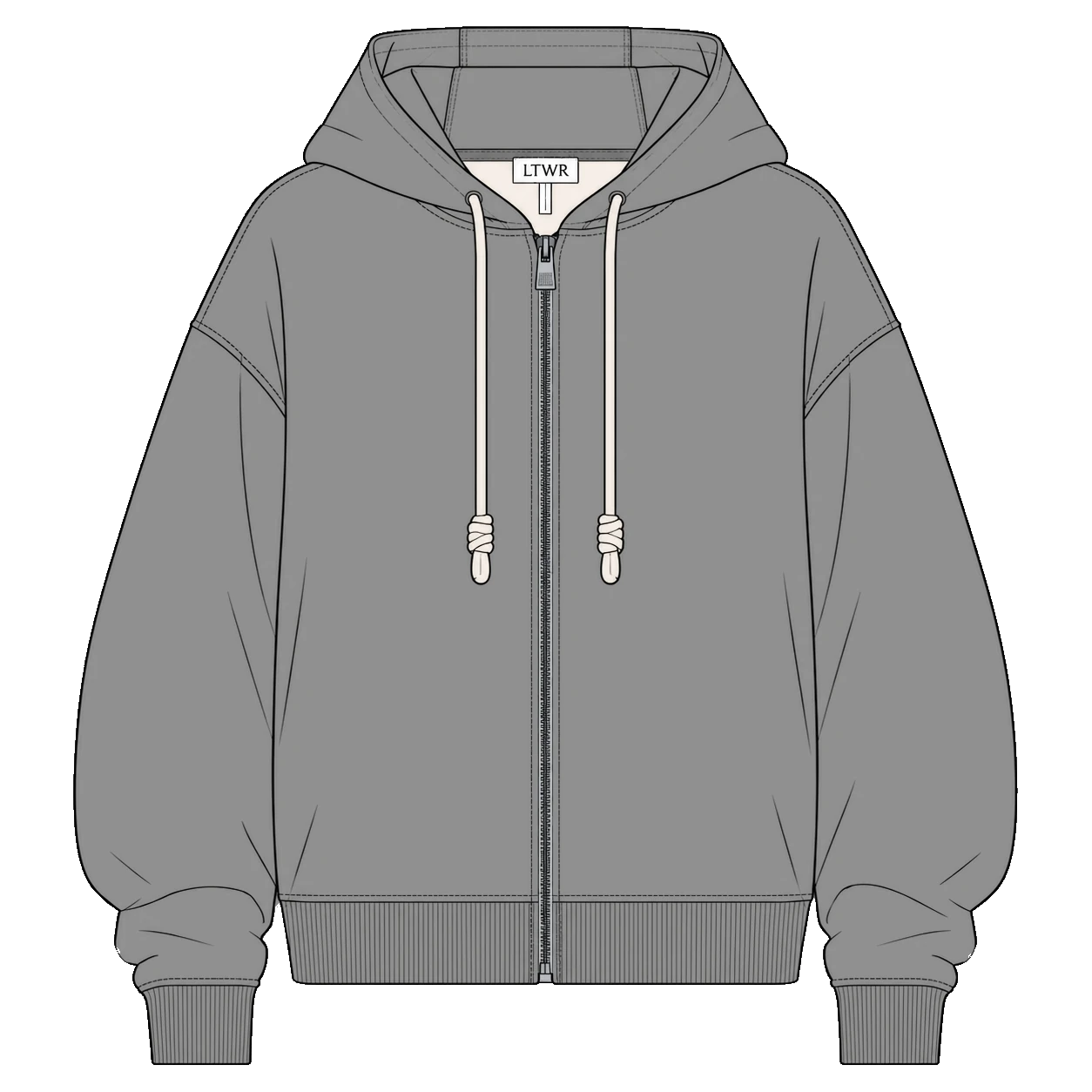
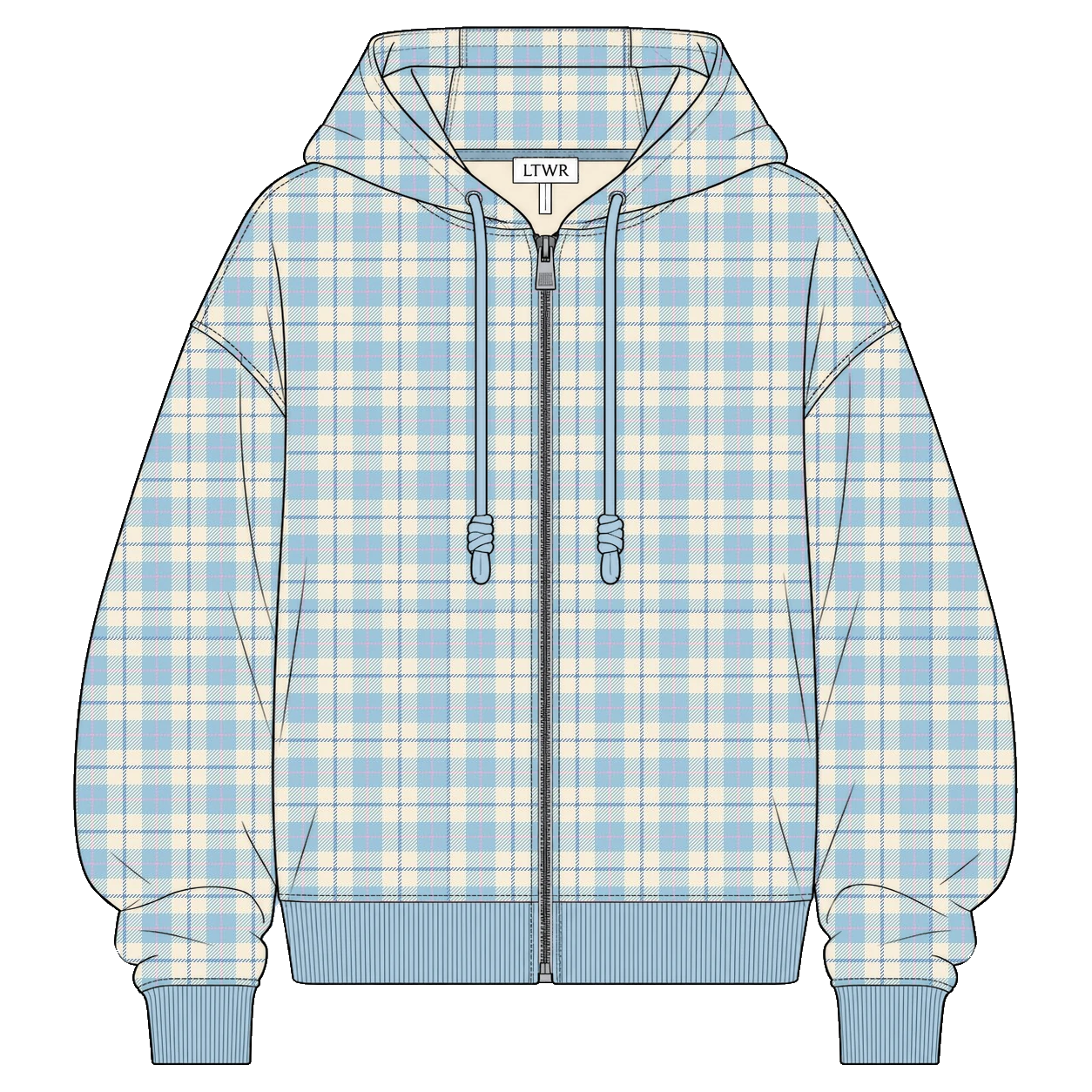
Give each area its own color or pattern.
Build colorways from one technical flat.
FREE BETATools for fashion designers
Turn your technical flats and product images
into colorways, with less repetitive work.
Free during beta · No account needed
01 / Technical flats
Give each area its own color or pattern.
Build colorways from one technical flat.
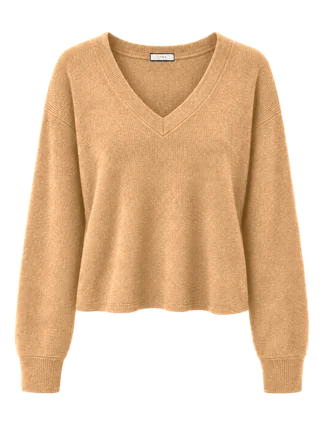
02 / Product images
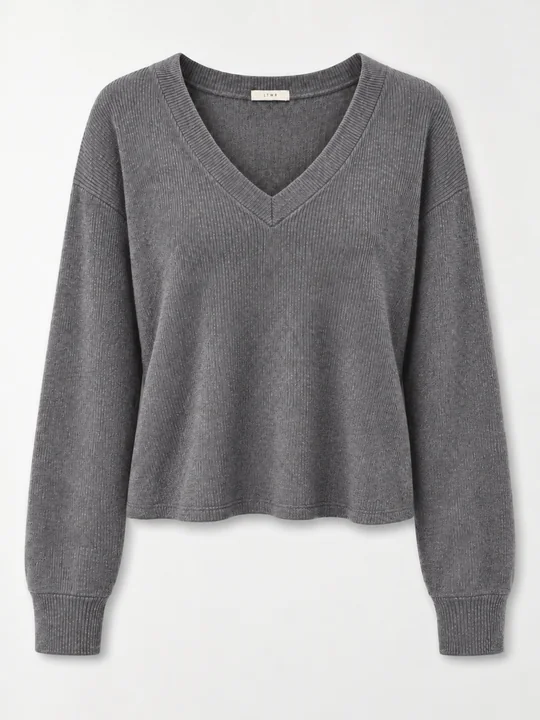
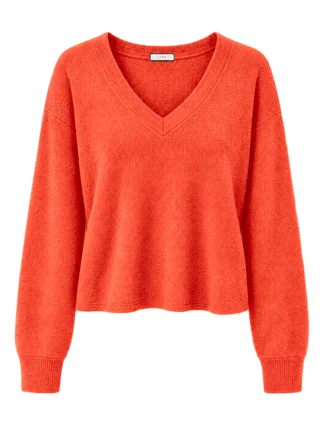
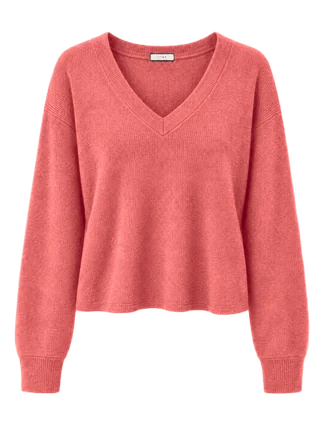
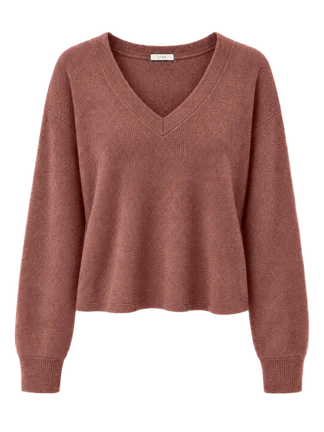
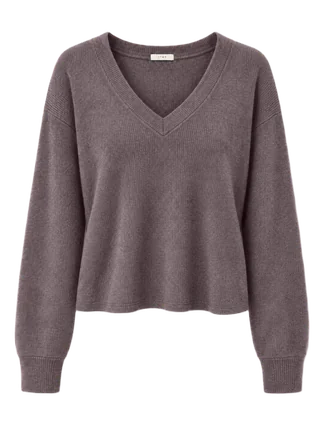
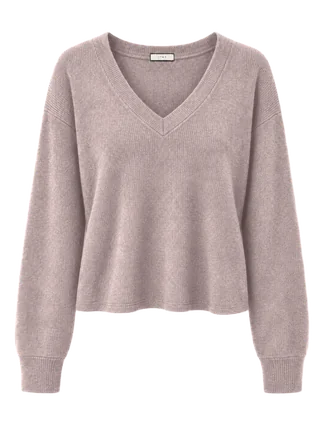
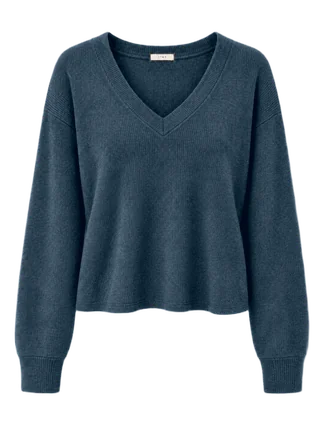
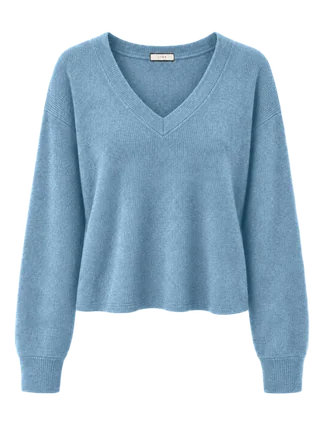
One solid-color product image.
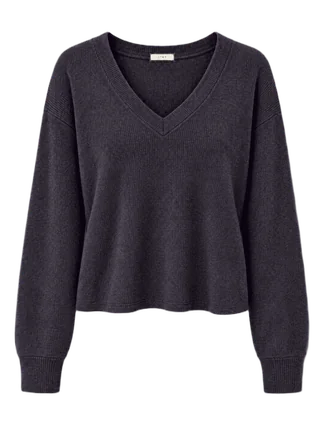
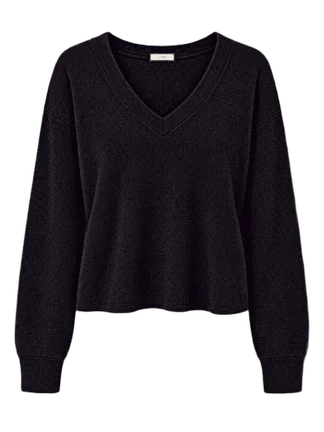
Multiple colors, each as its own result image.
Q&A
Yes. Both tools are free during the beta, and you can start without an account.
Use Flat Fill Studio to add colors and patterns to a technical flat. Use Batch Recolor to make solid-color options from one product image.
For Flat, choose a sharp black-line sketch with closed shapes on a white or transparent background. For Batch, choose one solid-color product on a clean background, without a person or mannequin. Avoid black or white garments when possible so details stay visible. Both accept PNG/JPG; Flat also accepts SVG. See the file limits and image guidelines.
Yes, in Flat Fill Studio. Each area can have its own color or pattern. Batch Recolor changes the whole product to one solid color at a time.
Batch downloads a model of about 100 MB on first use. Keep the tab open and stay connected. Your browser may reuse it next time, though the first mask in a new session can still take longer to start.
Flat downloads your colorways as PNGs in a ZIP. Batch offers individual PNGs or a ZIP of selected results. There is no autosave: download before closing, refreshing or leaving your workspace.
No. Image editing happens in your browser. We collect limited usage totals to improve the beta. Read Privacy policy for details.
Use the latest Chrome or Edge on a desktop or laptop. Editing on mobile, Safari and other browsers is not supported during this beta.